Wave-USB Recorder
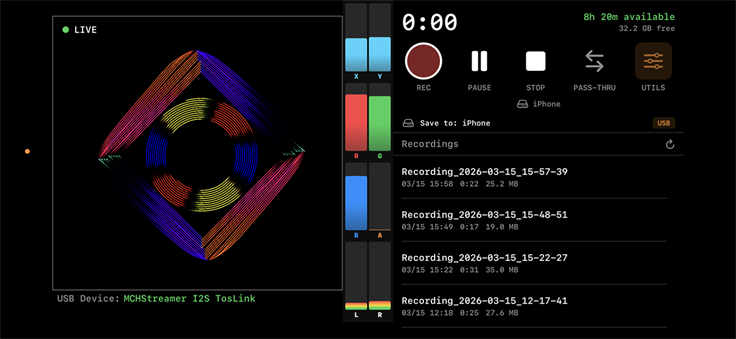
The Wave-USB Recorder was developed to compliment the capabilities of the Wave-USB Player. This app allows you to quickly and easily create 8-channel wave files that can be used by the Wave-USB Player or offloaded to a PC/MAC for further editing.
The app allows for recording directly to iOS internal storage, a USB connected memory stick or a network shared storage.
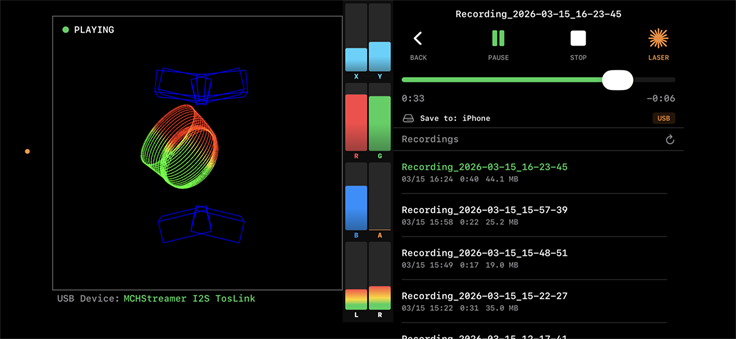
Pass-Thru mode allows you to display the live recording on a laser projector. After recording, simply tap one of the files to enter playback mode to verify the show recorded properly.
When in playback mode, if the Wave-USB device isn't attached, the show still plays in the preview window and the audio for channel 7&8 route to the iOS internal speakers.
During a recording, pressing stop ends the current file being created. Hitting pause stops the recording however, hitting pause again seamlessly restarts the recording where it left off.
The app allows for recording directly to iOS internal storage, a USB connected memory stick or a network shared storage.
Pass-Thru mode allows you to display the live recording on a laser projector. After recording, simply tap one of the files to enter playback mode to verify the show recorded properly.
When in playback mode, if the Wave-USB device isn't attached, the show still plays in the preview window and the audio for channel 7&8 route to the iOS internal speakers.
During a recording, pressing stop ends the current file being created. Hitting pause stops the recording however, hitting pause again seamlessly restarts the recording where it left off.
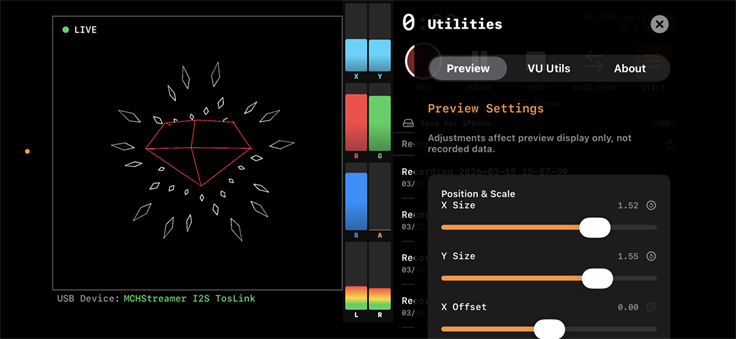
Within the Utilities menu are settings for the Preview window and a detailed VU meter. The Preview window settings have no affect on the recorded audio and are only available to take full advantage of the preview window.
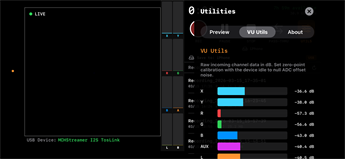
The VU Utils menu allows for fine tuning of the Wave-USB internal offset potentiometers. When no show is playing the VU meters should be as low as possible. Generally, a value less than -35 dB is sufficient.
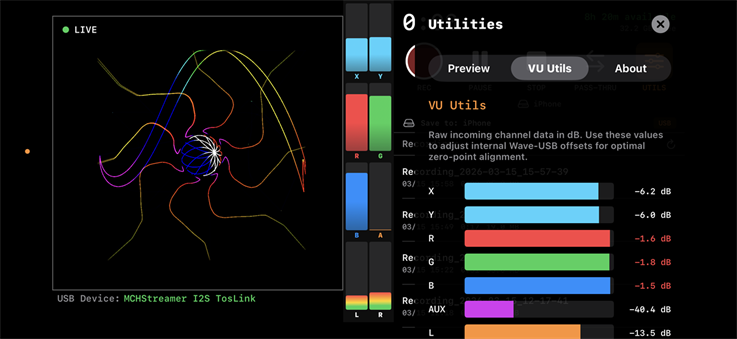
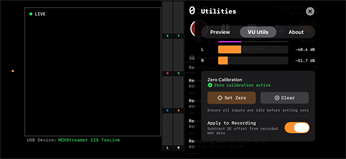
When the Wave-USB is in an idle state, no signals are being sent to the device, it is possible for the DC offset to drift slightly for a variety of reasons. This generally doesn't affect show recording unless the offset is significant enough. To combat this, prior to recording, it is recommended to set the zero point for the input DC offsets. This will zero out any offset present to acquire the cleanest recording possible.
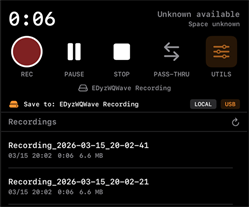
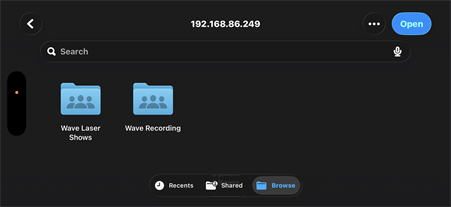
Multi-channel wave lasershows can occupy a significant amount of storage on an iOS device. There are a couple options available around this. Your iOS device can be connected to a USB hub that connects to the Wave-USB device and a USB memory key. Shows can be recorded and played from USB in this App as well as the Wave-USB Player app. Another option, for both apps, is to use shared storage on a network.
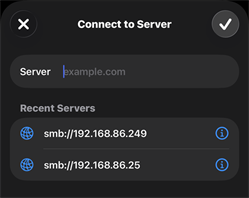
Sharing network storage requires a few steps to setup. From a PC, the folder where you want shows saved will need to be setup for sharing, giving permissions for reading and writing. With the iOS device on the same network (WiFi) you will need to access the Files app, at the top right select "Connect to Server," specify the IP address of the PC hosting the share and type in your login credentials. Next, open the app and select the USB icon on the "Save to:" line. From here you can navigate to you network share and select open within the folder you would like shows to be saved.
Sharing network storage requires a few steps to setup. From a PC, the folder where you want shows saved will need to be setup for sharing, giving permissions for reading and writing. With the iOS device on the same network (WiFi) you will need to access the Files app, at the top right select "Connect to Server," specify the IP address of the PC hosting the share and type in your login credentials. Next, open the app and select the USB icon on the "Save to:" line. From here you can navigate to you network share and select open within the folder you would like shows to be saved.